Publishing the Open Source Project AgentForge to the Official Maven Central Repository in Practice: Namespace Selection and Automated Publishing
Publish AgentForge's library modules to Maven Central as the official
1.0.0release, so that users can import them directly through a Maven dependency.
When working on an open source project, we often run into a very concrete problem: the project runs fine on GitHub, but people who want to use it don't know how to import it. Either they git clone it and run mvn install themselves, or they pass the jar around, which is a terrible experience. The most elegant approach is to publish it to the official Maven Central repository, so that users only need to declare one dependency coordinate in pom.xml.
AgentForge's model layer and Agent Runtime were already ready for release, so we decided to formally push them to Maven Central. During the whole process, the first stumbling block was how to define the groupId namespace. This article records this complete practice.
1. Background and Problem
1.1 Why Publish to Maven Central
- Zero barrier to use: users only need to declare a dependency coordinate, with no need to clone or compile;
- Ecosystem recognition: it can be indexed by IDEs and dependency platforms (such as mvnrepository), which counts as the "official identity" of an open source project;
- Reuse across projects: combined with a BOM for unified version management, it facilitates future modular evolution.
1.2 The Problem We Encountered
When publishing AgentForge, coordinate naming (groupId) is the first hurdle that cannot be avoided:
- Early on, the project used
com.changlu.agentforge; - But Maven Central requires that the groupId must be a namespace you can prove you "own / control". Reversing
com.changlugives the domainchanglu.com, which we do not own, so verification would be rejected.
So the question becomes: for a personal open source project, how exactly should the groupId be chosen? This is the core concept that this article will clarify first.
2. Core Concepts
2.1 Hard Requirements for Publishing to Maven Central
Before getting started, you must first know what validations Central performs on uploaded artifacts. It is not a matter of "upload and you're done"; it requires satisfying all of the following at the same time:
- sources jar + javadoc jar (required for modules not packaged as
pom); - GPG/PGP signature: each file needs a
.ascsignature file; - Checksums:
.md5/.sha1are required (.sha256/.sha512are optional), generated automatically by the publishing plugin; - Required POM metadata:
name,description,url,licenses,developers,scm; - The version number must not end with
-SNAPSHOT.
Key point: if any one of the above is not satisfied, the release will fail at the Portal validation stage. All subsequent configuration in this article is built around these 5 items.
2.2 Two Sources of groupId Namespace (Scheme Comparison)
For personal / small-team projects, there are commonly two paths for a groupId namespace:
Scheme 1: Based on a GitHub Account — io.github.<username>
- Rule:
io.github.myusername, for exampleio.github.changluya; - Verification method: no domain is needed. Sonatype requires you to create a public repository with the name specified by the Portal under the corresponding GitHub account to prove account ownership; once verified, you can delete it.
Scheme 2: Based on Your Own Domain — Reverse Domain
- Rule: if you own
example.com, usecom.example; if you ownchanglu.cloud, usecloud.changlu, and you can further add a project subspace such ascloud.changlu.agentforge; - Verification method: add a TXT record given by the Portal to that domain's DNS.
Comparison of the Two Schemes
| Dimension | Scheme 1: GitHub io.github.<username> | Scheme 2: Reverse of your own domain |
|---|---|---|
| Verification method | Create a public GitHub repository | Add a DNS TXT record |
| Cost | Zero cost | Requires owning a domain |
| Naming freedom | Locked to the GitHub account name | Fully autonomous, can use a brand name |
| Long-term stability | Affected if the account is renamed / abandoned | The domain lives on as long as the name does |
| Reuse across projects | Share one account namespace | Share one domain namespace |
| Applicable scenario | Fast start without a domain | Branded projects that already have a domain |
Drawbacks: although Scheme 1 is zero cost, the name carries the GitHub account name (such as
changluya), which is neither attractive nor changeable; once the account is renamed, historical coordinates no longer match the name. Scheme 2 requires you to actually own and be able to operate the domain DNS, but the long-term benefit is greater.
2.3 The Choice of This Scheme
This scheme adopts Scheme 2: the namespace is cloud.changlu, and the project subspace is cloud.changlu.agentforge.
Therefore, all the preparatory work below (DNS TXT for namespace verification, Token, GPG, settings) is written for the "own domain" path.
Note: if you want to switch to Scheme 1, you only need to change the namespace to
io.github.changluyaand replace "DNS TXT verification" with "create a public GitHub repository". All other steps (GPG / Token / settings.xml / project modification / publishing process) are completely identical.
3. Overall Scheme Design
3.1 Which Modules to Publish
AgentForge is a multi-module project, and not all modules need to be published externally. We publish the library modules and exclude the example modules:
| Module artifactId | packaging | Published | Description |
|---|---|---|---|
agentforge-ai-parent | pom | Yes | Parent of all modules, must be published |
agentforge-ai-bom | pom | Yes | BOM, recommended to publish |
agentforge-model | pom | Yes | Aggregator / parent POM of model submodules |
agentforge-model-api | jar | Yes | |
agentforge-model-core | jar | Yes | |
agentforge-model-openai | jar | Yes | |
agentforge-model-anthropic | jar | Yes | |
agentforge-model-registry | jar | Yes | |
agentforge-framework | pom | Yes | Aggregator / parent POM of framework submodules |
agentforge-agent-core | jar | Yes | |
agentforge-harness-agent | jar | Yes | |
agentforge-aggregator (root) | pom | No | Just an aggregator, users don't need it |
agentforge-examples / agentforge-service / -ui / -web | pom/jar | No | Examples / applications, not published |
3.2 The Publishing Pipeline
本地构建
  → 各模块生成 sources / javadoc jar
  → 各模块 GPG 签名(.asc)
  → central-publishing-maven-plugin 打包成 bundle
  → 上传到 Sonatype Central Portal 校验
  → Portal 发布 → 同步到 Maven Central
Key point: Sonatype's
central-publishing-maven-pluginpackages the artifacts of the entire reactor into a single bundle for upload, so we only need to configure it once in the parent, and simply exclude the example modules usingexcludeArtifacts.
3.3 Is a Script Needed?
Configuring a script is recommended. Encapsulating "version validation → local signing and packaging dry run → formal deploy" into a release.sh avoids typing long commands by hand and missing parameters every time. The script contents are in Section 7.
Day-to-day development still uses mvn install / test; only releases go through the script.
4. Prerequisites (Account / Domain / Keys)
This section explains the "own domain" path. If you use the GitHub approach, see the explanation in 2.2.
4.1 Register for Sonatype Central Portal
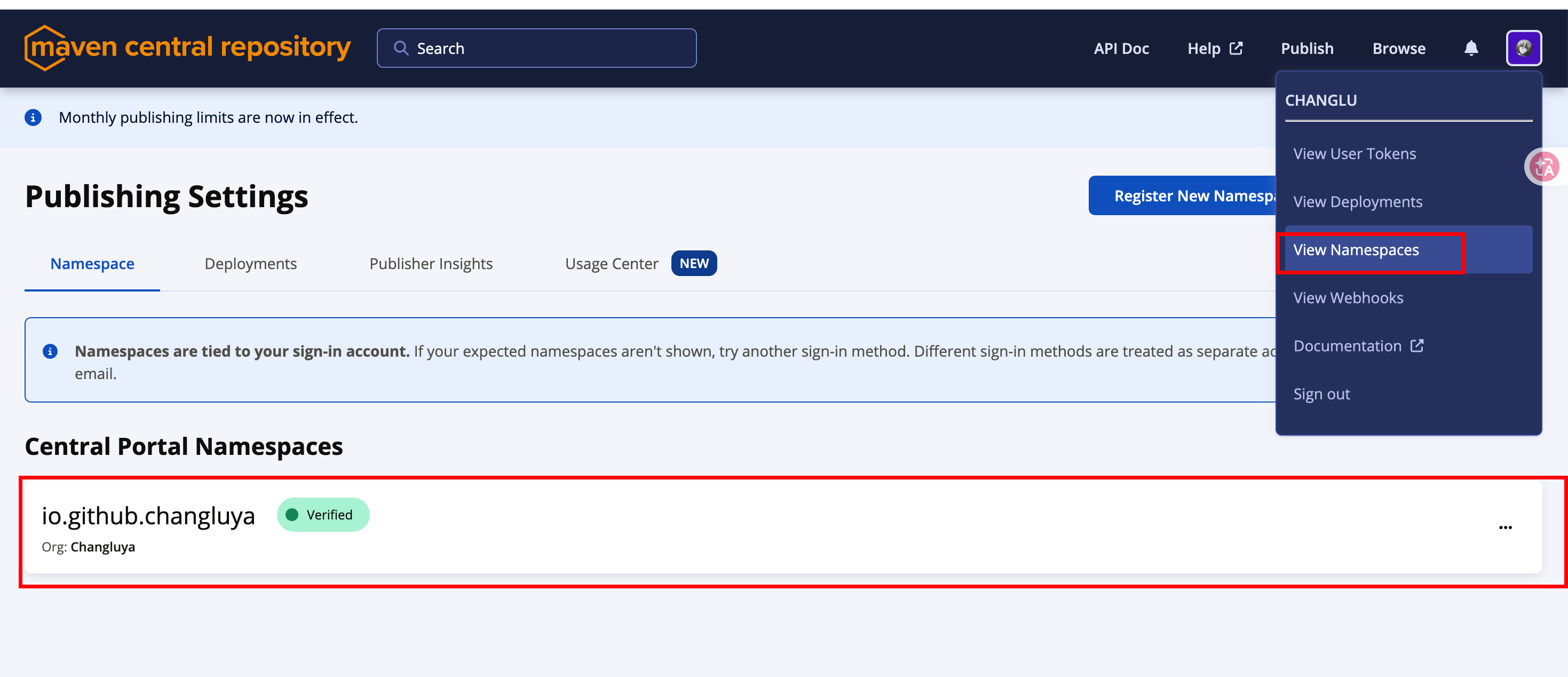
Open https://central.sonatype.com/, register and log in with your email / GitHub, and remember this account — namespaces, Tokens, and publishing are all managed here later.
On first entry, because you logged in with GitHub, the selected namespace is the following default namespace space:
4.2 Add and Verify the Namespace cloud.changlu (Own Domain Path)
How do you complete namespace verification? The steps are as follows:
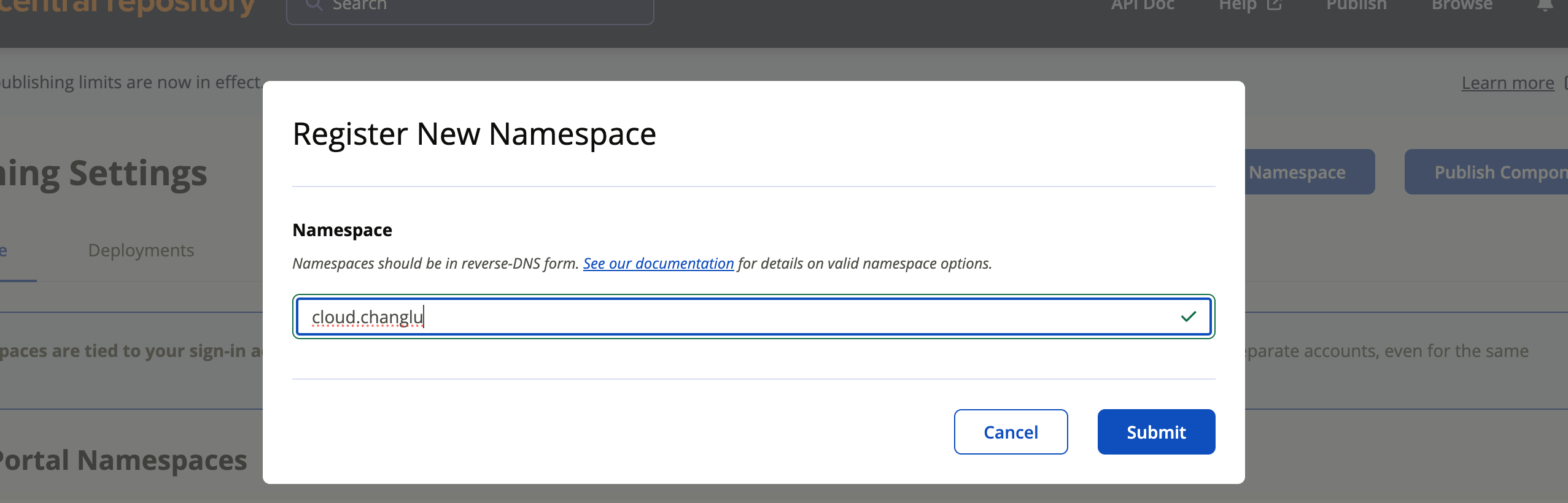
- Log in to the Portal → top-right Account → Namespaces (or Add Namespace on the home page);
- Enter
cloud.changluand submit;- Note: verification targets the domain itself,
changlu.cloud;cloud.changluis merely its reverse namespace;
- Note: verification targets the domain itself,

-
The Portal gives a Verification Key; go to the DNS provider of
changlu.cloudand add a TXT record:- Host record:
@(the root domainchanglu.cloud) - Record type:
TXT - Record value: the verification value given by the Portal (paste it in full)

- Host record:
-
How do you verify whether the TXT has taken effect? Run locally:
dig -t txt changlu.cloud# 或host -t txt changlu.cloudBeing able to see the TXT value you added is sufficient.
-
Return to the Portal and click Verify; the status changes to Verified.
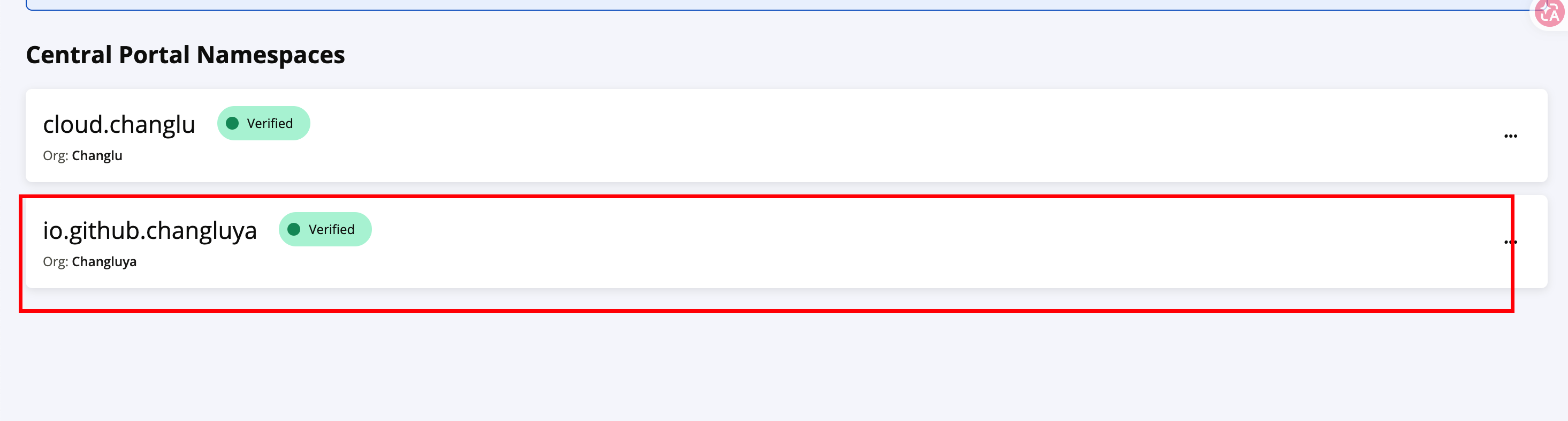
Note: DNS has caching; right after adding it you may need to wait anywhere from a few minutes to tens of minutes; domestic DNS providers may take longer.
Key point: once a namespace is approved, its sub-namespaces (
cloud.changlu.agentforge) do not need to be verified again and can be published directly.
4.3 Install GPG, Generate a Key, and Upload the Public Key (Including Common Failure Troubleshooting)
This section is organized as "install → configure → generate → sign self-check → upload and reverse lookup → backup". Except for the name, public email, and Passphrase in the key wizard, which you must enter manually, the command blocks can all be copied and executed in order. The examples do not contain any real keys, passphrases, or Tokens.
Step 0: First confirm whether GPG already exists on this machine:
gpg --version
- If there is output and it is >= 2.2 → skip directly to 4.3.2;
- If it says
command not found→ install it as described below.
4.3.1 Choose the Installation Method by Operating System
| Environment | Recommended path | Applicability notes |
|---|---|---|
| macOS (versions currently supported by Homebrew) | Homebrew bottle | Shortest path; no local compilation needed when a prebuilt package exists |
| Older macOS / Homebrew Tier 3 | MacPorts | Prefer the binary package for the matching macOS |
| macOS (prefer GUI) | GPG Suite | Bundles MacGPG, GPG Keychain, and pinentry |
| Debian / Ubuntu / WSL | apt | Use the distribution package |
| Fedora / RHEL | dnf | Use the distribution package |
| Windows 10/11 | Gpg4win | The officially recommended Windows installer; bundles Kleopatra/pinentry |
macOS
Check the macOS version first, then choose the installation path:
sw_vers -productVersion
uname -m
Homebrew only continues to produce prebuilt bottles for currently supported macOS versions. Older macOS versions may be classified as Tier 3, in which case brew install gnupg will switch to compiling large dependencies such as OpenSSL from source, which is time-consuming and easily interrupted. Taking the official support matrix as of 2026-10 as an example, on Apple Silicon, macOS 15–27 can use bottles, while macOS 11–14 are Tier 3. Please refer to the real-time description in Homebrew Support Tiers.
Path A: Homebrew (currently supported macOS)
brew --version
brew install gnupg pinentry-mac
command -v gpg
gpg --version
When a matching bottle exists, Homebrew downloads the prebuilt package automatically, with no need to add --force-bottle manually. If it reports has no bottle or spends a long time on build.rb / compiling openssl@3, it means the current system has no matching binary package; do not repeatedly launch brew install, and switch directly to Path B or C.
On Apple Silicon, Homebrew is under
/opt/homebrewby default; ifcommand -v gpgproduces no output, runeval "$(/opt/homebrew/bin/brew shellenv)"and write that line into~/.zprofile. On Intel Mac, the default prefix is/usr/local.
Path B: MacPorts (recommended for older macOS, binary packages available)
- Download the
.pkgmatching your macOS major version (for example Sonoma 14) from the MacPorts official installation page and install it; - Open a new terminal and run:
cd /tmp
sudo /opt/local/bin/port selfupdate
# 使用默认 +pinentry(终端口令输入器),不需要完整 Xcode
sudo /opt/local/bin/port install gnupg2

export PATH="/opt/local/bin:/opt/local/sbin:$PATH"
command -v gpg && gpg --version
MacPorts installs to /opt/local by default. If PATH does not take effect automatically:
echo 'export PATH="/opt/local/bin:/opt/local/sbin:$PATH"' >> ~/.zprofile
source ~/.zprofile
Do not add
+pinentry_macon a machine that only has Command Line Tools installed. MacPorts'pinentry-macport requires a full Xcode, otherwise it reportsrequires a full Xcode installation. Maven Central signing only needs the default terminal-basedpinentry. If you have already started a build with the wrong variant, clean the port's temporary build directory first, then install the default variant:
cd /tmp
sudo /opt/local/bin/port clean gnupg2
sudo /opt/local/bin/port install gnupg2
port clean gnupg2only cleans the port's temporary build artifacts; it does not delete project files or uninstall other already-installed dependencies.
Path C: GPG Suite (a fast GUI option)
Download an installer compatible with your current macOS from the GPG Suite website. It bundles MacGPG, GPG Keychain, and pinentry, and does not require compiling OpenSSL with Homebrew. GPG Mail is an optional email plugin, and publishing to Maven Central does not need it.
/usr/local/MacGPG2/bin/gpg --version
echo 'export PATH="/usr/local/MacGPG2/bin:$PATH"' >> ~/.zprofile
source ~/.zprofile
Linux / WSL
GnuPG is usually already provided in Linux distributions. For WSL, run the same commands according to its Linux distribution:
# Debian / Ubuntu / WSL Ubuntu
sudo apt update
sudo apt install -y gnupg2 pinentry-curses

# Fedora / RHEL
sudo dnf install -y gnupg2 pinentry

gpg --version
For SSH, CI, or pure terminal environments, it is recommended to use pinentry-curses and set it in the current shell:
export GPG_TTY="$(tty)"
Windows 10/11
Download the installer from the Gpg4win website. Publishing to Maven Central only needs GnuPG and pinentry; Kleopatra can be used for GUI key management. After installation, reopen PowerShell and verify:
gpg --version
where.exe gpg
If gpg is not on PATH, add Gpg4win's bin directory to the user PATH, then reopen PowerShell.
When Are Command Line Tools Actually Needed
If installing gnupg via Homebrew reports the following error:
Error: No developer tools installed.
Install the Command Line Tools:
  xcode-select --install
It means the system lacks Command Line Tools — even if /usr/bin/clang exists, as long as there is no "active developer directory" it will report this. First run:
xcode-select --install
An installation window pops up; click Install / 安装 and wait for the download and installation to finish (a few minutes). After completion, confirm:
xcode-select -p
# 期望输出:/Library/Developer/CommandLineTools
Note: when installing a bottle, Apple Silicon usually does not need CLT; it is only required when compiling from source. If you already have full Xcode installed, you can also use
sudo xcode-select --switch /Applications/Xcode.app/Contents/Developer.
4.3.2 Verify PATH and Configure pinentry
First confirm that Maven can later find the same gpg through PATH:
command -v gpg
gpg --version
command -v pinentry || true
command -v gpg must output a real path; then run the corresponding environment command below.
On macOS/Linux it is recommended to write GPG_TTY into the shell config to prevent the passphrase prompt from binding to the wrong terminal:
# zsh(macOS 默认)
grep -qxF 'export GPG_TTY="$(tty)"' ~/.zshrc 2>/dev/null || \
  echo 'export GPG_TTY="$(tty)"' >> ~/.zshrc
export GPG_TTY="$(tty)"
bash users run:
grep -qxF 'export GPG_TTY="$(tty)"' ~/.bashrc 2>/dev/null || \
  echo 'export GPG_TTY="$(tty)"' >> ~/.bashrc
export GPG_TTY="$(tty)"
On macOS, the most common errors from gpg --full-generate-key are No pinentry or Inappropriate ioctl for device, caused by not finding the passphrase input program:
Homebrew users can copy directly:
mkdir -p ~/.gnupg
chmod 700 ~/.gnupg
PINENTRY="$(brew --prefix)/bin/pinentry-mac"
touch ~/.gnupg/gpg-agent.conf
sed -i.bak '/^pinentry-program /d' ~/.gnupg/gpg-agent.conf
echo "pinentry-program $PINENTRY" >> ~/.gnupg/gpg-agent.conf
chmod 600 ~/.gnupg/gpg-agent.conf
gpgconf --kill gpg-agent
MacPorts users can copy directly:
export PATH="/opt/local/bin:/opt/local/sbin:$PATH"
mkdir -p ~/.gnupg
chmod 700 ~/.gnupg
touch ~/.gnupg/gpg-agent.conf
sed -i.bak '/^pinentry-program /d' ~/.gnupg/gpg-agent.conf
echo 'pinentry-program /opt/local/bin/pinentry' >> ~/.gnupg/gpg-agent.conf
chmod 600 ~/.gnupg/gpg-agent.conf
gpgconf --kill gpg-agent
For Linux pure-terminal users who need to explicitly configure pinentry-curses:
mkdir -p ~/.gnupg
chmod 700 ~/.gnupg
touch ~/.gnupg/gpg-agent.conf
sed -i.bak '/^pinentry-program /d' ~/.gnupg/gpg-agent.conf
echo "pinentry-program $(command -v pinentry-curses)" >> ~/.gnupg/gpg-agent.conf
chmod 600 ~/.gnupg/gpg-agent.conf
gpgconf --kill gpg-agent
GPG Suite and Gpg4win already bundle and configure pinentry, so you usually do not need to write gpg-agent.conf manually. MacPorts' default /opt/local/bin/pinentry is the terminal version and can be used directly for Maven signing.
4.3.3 Generate a Key Pair
On a personal local machine, interactive mode is recommended, letting pinentry read the Passphrase securely and avoiding writing the passphrase into shell history or a config file:
export GPG_TTY="$(tty)" 2>/dev/null || true
gpg --full-generate-key
# RSA and RSA → 4096 → 有效期(例如 2y)→ 姓名/邮箱 → 设置强 Passphrase
Recommended values:
- Type:
RSA and RSA; - Length:
4096; - Validity:
2yis recommended; it can be renewed before expiry, which makes risk easier to manage than a permanent key; - Name/email: use the publisher identity that will maintain Maven Central artifacts over the long term;
- Passphrase: use a strong passphrase; do not write it into the repository, scripts, or shell history.
For CI scenarios, you can use
--batchto generate a dedicated key, but it is not recommended to use%no-protectionas the default option for a personal publishing key. If you must use a passphrase-less CI key, limit its purpose, set an expiry, and store the private key only in a CI Secret.
4.3.4 View and Record the KEY_ID
gpg --list-secret-keys --keyid-format=long
# sec   rsa4096/ABCDEF1234567890 2026-10-04 ...
#              ^^^^^^^^^^^^^^^^ 即 KEY_ID
Also record the full 40-character fingerprint; when verifying keys externally you should prefer the fingerprint rather than only comparing the short KEY_ID:
# 自动取当前密钥环中的第一把私钥
KEY_ID="$(gpg --batch --with-colons --list-secret-keys | awk -F: '$1 == "sec" { print $5; exit }')"
FULL_FINGERPRINT="$(gpg --batch --with-colons --fingerprint "$KEY_ID" | awk -F: '$1 == "fpr" { print $10; exit }')"

test -n "$KEY_ID" && test -n "$FULL_FINGERPRINT" || {
  echo 'ERROR: 未找到私钥或指纹'
  exit 1
}
echo "KEY_ID=$KEY_ID"
echo "FULL_FINGERPRINT=$FULL_FINGERPRINT"
gpg --fingerprint "$KEY_ID"
If there are already multiple private keys in the keyring, first find the key created this time via
gpg --list-secret-keys --keyid-format=long, then manually runKEY_ID="16位长KEY_ID". Subsequent commands are executed in the same terminal by default and reuse these two variables.
4.3.5 Local Signing and Signature Verification (Must Do Before Release)
This step simultaneously verifies the private key, pinentry, Passphrase, and GPG agent, making it easier to locate problems than running Maven directly:
# 即使换了新终端,也能自动恢复变量
KEY_ID="${KEY_ID:-$(gpg --batch --with-colons --list-secret-keys | awk -F: '$1 == "sec" { print $5; exit }')}"

echo 'AgentForge Maven Central GPG signing test' > /tmp/agentforge-gpg-test.txt

gpg --local-user "$KEY_ID" \
  --armor \
  --detach-sign /tmp/agentforge-gpg-test.txt

gpg --verify \
  /tmp/agentforge-gpg-test.txt.asc \
  /tmp/agentforge-gpg-test.txt
Seeing Good signature / 完好的签名 means the local signing pipeline is working. The test file is located in /tmp; do not commit it to the project.
4.3.6 Upload the Public Key and Reverse-Look It Up from the Server
# 自动恢复 KEY_ID 与完整指纹
KEY_ID="${KEY_ID:-$(gpg --batch --with-colons --list-secret-keys | awk -F: '$1 == "sec" { print $5; exit }')}"
FULL_FINGERPRINT="${FULL_FINGERPRINT:-$(gpg --batch --with-colons --fingerprint "$KEY_ID" | awk -F: '$1 == "fpr" { print $10; exit }')}"

# 主用:Ubuntu 服务器(较稳定)
gpg --keyserver hkps://keyserver.ubuntu.com --send-keys "$KEY_ID"

# 备用:主用超时时改用它
gpg --keyserver hkps://keys.openpgp.org --send-keys "$KEY_ID"

# 上传后请使用完整指纹反查,不要只用短 KEY_ID
curl -fsSL \
  "https://keyserver.ubuntu.com/pks/lookup?op=get&search=0x${FULL_FINGERPRINT}" \
  | grep 'BEGIN PGP PUBLIC KEY BLOCK'
Outputting BEGIN PGP PUBLIC KEY BLOCK means the keyserver can already return that public key. There may be a brief indexing delay right after upload; just wait a few tens of seconds and check again.
Note:
keys.openpgp.orgstrips user identity, and requires you to confirm via an email link before the upload actually counts as successful; Maven Central more often pulls fromkeyserver.ubuntu.com, so prefer ubuntu.
4.3.7 Back Up the Private Key and ownertrust
The public key can be public, but the private key must be stored encrypted. When backing up, first restrict the file permissions of the current shell:
umask 077
KEY_ID="${KEY_ID:-$(gpg --batch --with-colons --list-secret-keys | awk -F: '$1 == "sec" { print $5; exit }')}"
GPG_BACKUP_DIR="$HOME/agentforge-gpg-backup"
mkdir -p "$GPG_BACKUP_DIR"
chmod 700 "$GPG_BACKUP_DIR"

gpg --armor --export-secret-keys "$KEY_ID" \
  > "$GPG_BACKUP_DIR/agentforge-private-key.asc"
gpg --export-ownertrust \
  > "$GPG_BACKUP_DIR/agentforge-ownertrust.txt"
chmod 600 "$GPG_BACKUP_DIR"/*
$HOME/agentforge-gpg-backup is only a temporary export location. Encrypted disks, offline media, or password managers that support secure attachments are the appropriate long-term backup locations. Delete the temporary directory after the transfer is complete; do not commit it to Git, do not upload plaintext to cloud storage, and do not send the private key or Passphrase to anyone else.
4.3.8 Complete Acceptance Checklist
command -v gpg
gpg --version
gpg --list-secret-keys --keyid-format=long
KEY_ID="${KEY_ID:-$(gpg --batch --with-colons --list-secret-keys | awk -F: '$1 == "sec" { print $5; exit }')}"
gpg --fingerprint "$KEY_ID"
gpg --verify /tmp/agentforge-gpg-test.txt.asc /tmp/agentforge-gpg-test.txt
Section 4.3 is only considered complete after all of the following conditions are met:
gpgcan be found through PATH;- The private key, long KEY_ID, and full fingerprint are visible;
- The detached signature verifies successfully locally;
- The Ubuntu keyserver can return the public key by full fingerprint;
- The private key and ownertrust have been safely backed up outside the repository;
- The KEY_ID has been recorded for use by the Maven GPG plugin.
4.3.9 Common Failures and Troubleshooting
| Symptom | Cause | Handling |
|---|---|---|
gpg: command not found | Not installed / install directory not on PATH | Choose the local path per 4.3.1, and configure /opt/homebrew/bin, /opt/local/bin, or the Gpg4win bin |
No pinentry / Inappropriate ioctl for device | Missing pinentry / GPG_TTY not set / wrong path configured | Check pinentry per 4.3.2, set export GPG_TTY="$(tty)", then gpgconf --kill gpg-agent |
brew: command not found | Homebrew not installed | Install per method 1 in 4.3.1 |
Error: No developer tools installed | Missing Xcode Command Line Tools | Run xcode-select --install, or switch to method 2 GPG Suite in 4.3.1 |
Homebrew spends a long time compiling openssl@3 | Current macOS has no matching bottle / Tier 3 | Stop repeated installation and switch to MacPorts' matching macOS .pkg and gnupg2 |
--force-bottle still reports has no bottle | The current formula has not published a bottle for this system | The parameter cannot conjure a bottle out of thin air; switch to MacPorts / GPG Suite |
MacPorts reports pinentry-mac requires a full Xcode installation | +pinentry_mac was explicitly selected | No need to install full Xcode; run sudo port clean gnupg2 && sudo port install gnupg2 to switch to the default +pinentry |
MacPorts reports Requested variants ... do not match | The previous failed build left a variant cache | Run sudo port clean gnupg2, then reinstall |
| Key generation hangs with no response | The pinentry popup is blocked / TTY is incorrect | Ensure the terminal is in the foreground, run export GPG_TTY="$(tty)" and gpgconf --kill gpg-agent, then retry |
signing failed: No pinentry | Maven process cannot find pinentry at startup | First verify with the standalone signing test in 4.3.5, and check the absolute path in gpg-agent.conf |
keyserver send failed: Connection timed out | Public key server network problem | Switch to hkps://keys.openpgp.org and retry |
The send command stays at sending key for a long time | The keyserver responds slowly; not necessarily a failure | First use the HTTPS fingerprint lookup in 4.3.6 for a reverse lookup; if the public key can be found, it has been uploaded |
| Not found after uploading to openpgp.org | Email confirmation required | Click the confirmation in the email, then re-run --send-keys |
No secret key during signing | Wrong KEY_ID / the key is in another keyring | Verify with gpg --list-secret-keys, or add --local-user "$KEY_ID" |
Note: the private key and Passphrase are only used locally / in CI; do not commit them to the repository. Only the public key, KEY_ID, and fingerprint are public.
4.4 Generate a Portal User Token
-
Log in to https://central.sonatype.com/;
-
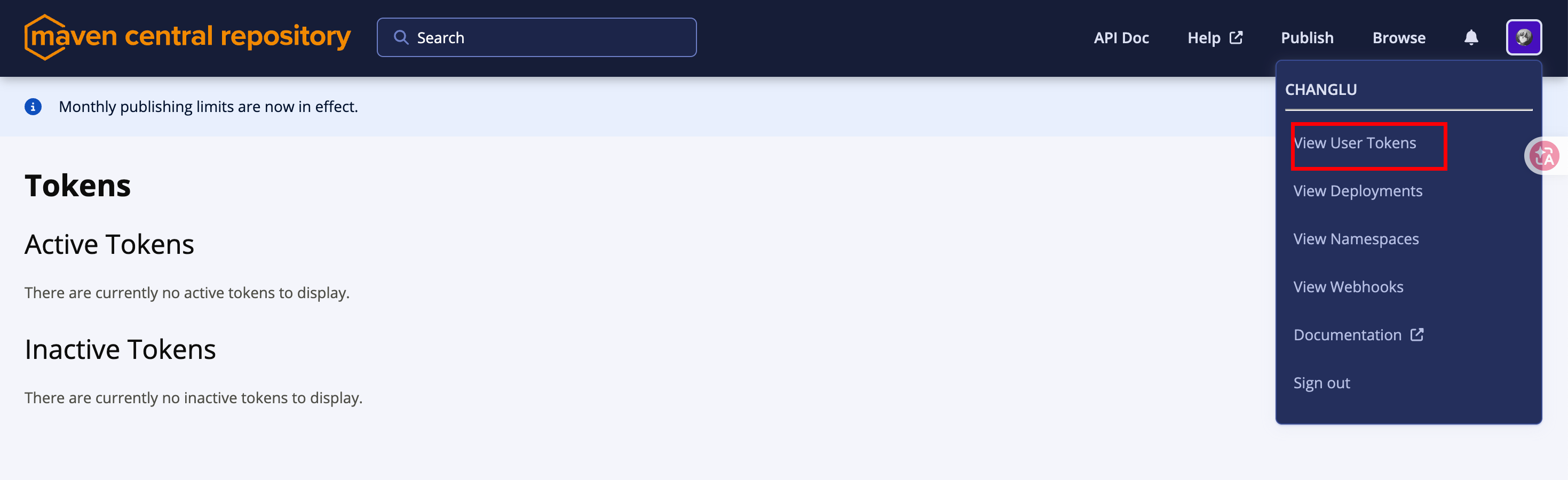
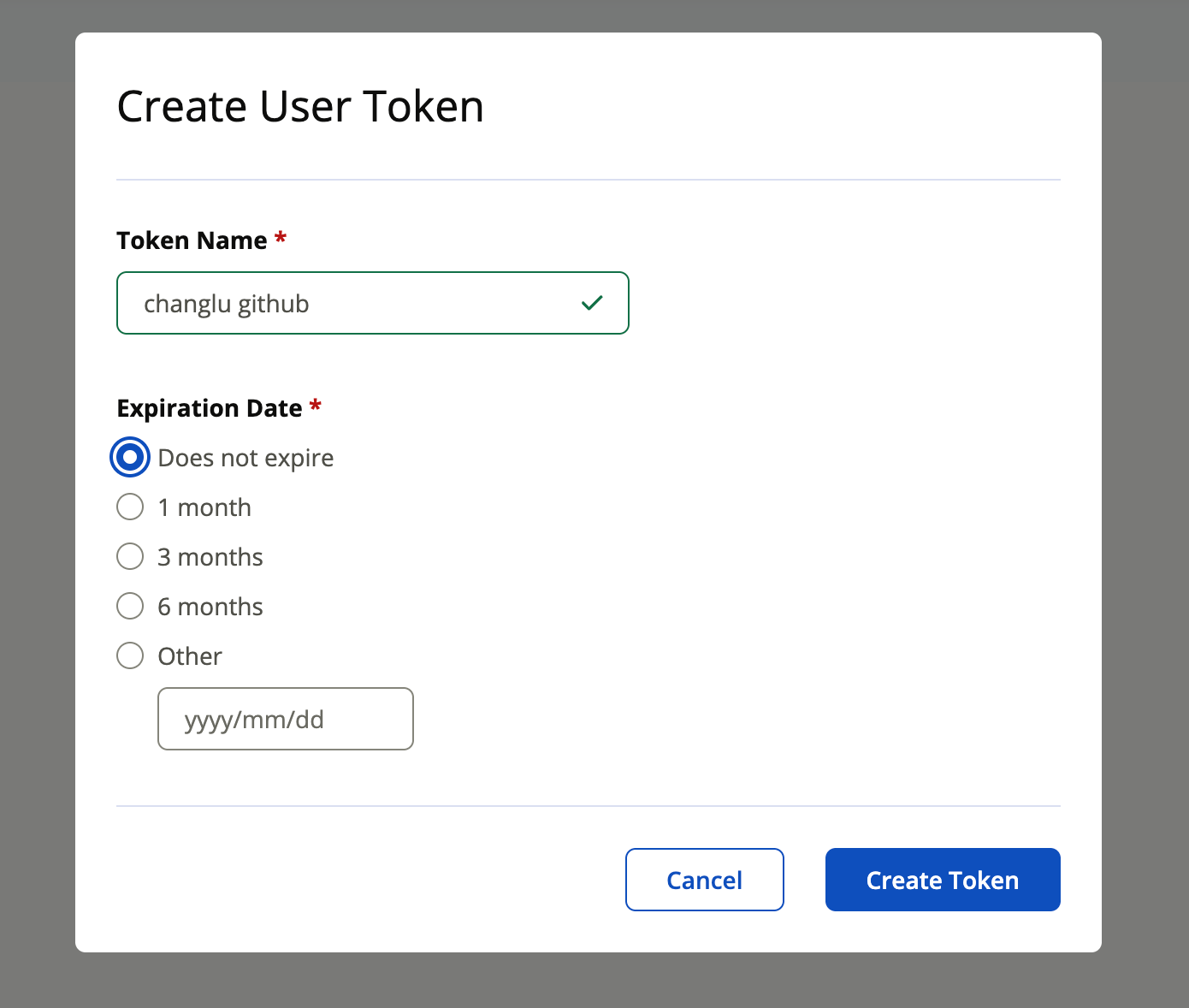
Open the user menu at the top right and click View User Tokens (or go to https://central.sonatype.com/account);
-
Generate a Token on the User Tokens page to get a username / password pair (this is a Token, not the login password); it is shown only once, so save it immediately.
4.5 Configure Maven settings.xml
You can use Maven's default location ~/.m2/settings.xml, or place it in a separate directory outside the repository and specify it at release time via mvn -s /absolute/path/settings.xml. The configuration below does not write the GPG Passphrase in plaintext into the XML:
<?xml version="1.0" encoding="UTF-8"?>
<settings xmlns="http://maven.apache.org/SETTINGS/1.0.0"
          xmlns:xsi="http://www.w3.org/2001/XMLSchema-instance"
          xsi:schemaLocation="http://maven.apache.org/SETTINGS/1.0.0
                              https://maven.apache.org/xsd/settings-1.0.0.xsd">
    <servers>
        <!-- Central Portal 的 User Token -->
        <server>
            <id>central</id>
            <username>YOUR_CENTRAL_TOKEN_USERNAME</username>
            <password>YOUR_CENTRAL_TOKEN_PASSWORD</password>
        </server>

    </servers>
</settings>
Restrict the file permissions:
chmod 600 /absolute/path/settings.xml
Before releasing, securely read the GPG Passphrase in the current terminal; the input is not echoed and does not enter shell history:
printf 'GPG Passphrase: '
IFS= read -r -s MAVEN_GPG_PASSPHRASE
printf '\n'
export MAVEN_GPG_PASSPHRASE
When using a custom configuration file, the Maven command must include -s:
mvn -s /absolute/path/settings.xml help:effective-settings
Key point:
<server id="central">corresponds to the publishing plugin'spublishingServerId; do not write it as${server}. Maven GPG Plugin 3.2.x reads the passphrase fromMAVEN_GPG_PASSPHRASEby default, so there is no longer any need to add agpgserver insettings.xml.
settings.xmlcontains the Central Token and must not be committed to Git. This article only uses placeholders and does not show any real Token or Passphrase.
5. Project Build Modifications (POM)
Why are only two files changed for the core release configuration? Because the parent of this repository's modules is agentforge-ai-parent, and the root agentforge-aggregator is not the parent of the modules, therefore:
- Plugins needed by all modules (source/javadoc/gpg/central) → put in
agentforge-ai-parent; - The root aggregator itself is not published → add
maven.deploy.skip=trueto the root POM.
Central also requires every published POM to have a complete description; if a sub-aggregator module originally lacks a <description>, it must be added in that module's POM. In this project these correspond to agentforge-model/pom.xml and agentforge-framework/pom.xml.
All modifications go into the release profile, so day-to-day mvn install / test does not trigger them and the behavior is unchanged.
5.1 Root pom.xml
Add to <properties> (only affects the root aggregator itself):
<properties>
    <revision>1.0.0-SNAPSHOT</revision>
    <!-- 根聚合器不发布到 Central -->
    <maven.deploy.skip>true</maven.deploy.skip>
    ...
</properties>
5.2 Complete the Metadata in agentforge-ai-parent/pom.xml
Add after <licenses>...</licenses>:
<developers>
    <developer>
        <id>changlu</id>
        <name>changlu</name>
        <email>YOUR_PUBLIC_EMAIL_OR_NOREPLY_EMAIL</email>
        <url>https://changlu.cloud</url>
        <organization>AgentForge</organization>
        <organizationUrl>https://github.com/changluya/AgentForge</organizationUrl>
    </developer>
</developers>

<scm>
    <connection>scm:git:https://github.com/changluya/AgentForge.git</connection>
    <developerConnection>scm:git:ssh://git@github.com/changluya/AgentForge.git</developerConnection>
    <tag>HEAD</tag>
    <url>https://github.com/changluya/AgentForge</url>
</scm>
licenses/developers/scmare inherited by submodules and can be read during Central validation;name/descriptionalready exist in the current modules. If validation reports a missingurl, add<url>in the parent or complete it module by module.
5.3 Add a release Profile to agentforge-ai-parent/pom.xml
First declare the plugin versions collectively in the existing <properties>:
<gpg.executable>gpg</gpg.executable>
<!-- 公开指纹:固定发布密钥,避免多私钥环境误签 -->
<gpg.keyname>YOUR_FULL_GPG_FINGERPRINT</gpg.keyname>
<maven.gpg.plugin.version>3.2.8</maven.gpg.plugin.version>
<maven.javadoc.plugin.version>3.11.2</maven.javadoc.plugin.version>
<maven.source.plugin.version>3.3.1</maven.source.plugin.version>
<central.publishing.maven.plugin.version>0.11.0</central.publishing.maven.plugin.version>
Then add before </project>:
<profiles>
    <profile>
        <id>release</id>
        <build>
            <plugins>
                <!-- 1) 为每个待发布 JAR 附加 Central 必需的 sources JAR -->
                <plugin>
                    <groupId>org.apache.maven.plugins</groupId>
                    <artifactId>maven-source-plugin</artifactId>
                    <version>${maven.source.plugin.version}</version>
                    <executions>
                        <execution>
                            <id>attach-sources</id>
                            <goals><goal>jar-no-fork</goal></goals>
                        </execution>
                    </executions>
                </plugin>

                <!-- 2) 附加 Central 必需的 Javadoc JAR;放宽 doclint,避免文档告警阻断发布 -->
                <plugin>
                    <groupId>org.apache.maven.plugins</groupId>
                    <artifactId>maven-javadoc-plugin</artifactId>
                    <version>${maven.javadoc.plugin.version}</version>
                    <configuration>
                        <doclint>none</doclint>
                        <quiet>true</quiet>
                    </configuration>
                    <executions>
                        <execution>
                            <id>attach-javadocs</id>
                            <goals><goal>jar</goal></goals>
                        </execution>
                    </executions>
                </plugin>

                <!-- 3) verify 阶段签名 POM 及全部附件;口令来自 gpg-agent 或 MAVEN_GPG_PASSPHRASE -->
                <plugin>
                    <groupId>org.apache.maven.plugins</groupId>
                    <artifactId>maven-gpg-plugin</artifactId>
                    <version>${maven.gpg.plugin.version}</version>
                    <configuration>
                        <!-- 脚本会用 -Dgpg.executable 覆盖为 MacPorts / Homebrew 绝对路径 -->
                        <executable>${gpg.executable}</executable>
                        <keyname>${gpg.keyname}</keyname>
                        <bestPractices>true</bestPractices>
                    </configuration>
                    <executions>
                        <execution>
                            <id>sign-artifacts</id>
                            <goals><goal>sign</goal></goals>
                            <phase>verify</phase>
                        </execution>
                    </executions>
                </plugin>

                <!-- 4) 将 reactor 构件汇总为一个 Central Portal deployment;首发保留手动 Publish -->
                <plugin>
                    <groupId>org.sonatype.central</groupId>
                    <artifactId>central-publishing-maven-plugin</artifactId>
                    <version>${central.publishing.maven.plugin.version}</version>
                    <extensions>true</extensions>
                    <configuration>
                        <publishingServerId>central</publishingServerId>
                        <!-- 首次建议 false:上传后到 Portal 手工检查再发布 -->
                        <autoPublish>false</autoPublish>
                        <!-- 排除示例模块,避免被打进上传 bundle -->
                        <excludeArtifacts>
                            <excludeArtifact>agentforge-examples</excludeArtifact>
                            <excludeArtifact>agentforge-service</excludeArtifact>
                            <excludeArtifact>agentforge-service-ui</excludeArtifact>
                            <excludeArtifact>agentforge-service-web</excludeArtifact>
                        </excludeArtifacts>
                    </configuration>
                </plugin>
            </plugins>
        </build>
    </profile>
</profiles>
Key points:
extensions=truelets the plugin take over deploy and upload the entire reactor as one bundle;excludeArtifactsexcludes by artifactId, ensuring the service applications do not enter the bundle;bestPractices=trueforbids passing a plaintext GPG passphrase in the POM / XML; useMAVEN_GPG_PASSPHRASEbefore releasing;autoPublish=false(first time) requires manually clicking Publish in the Portal after upload; once stable, you can change it totrueand add<waitUntil>published</waitUntil>.
5.4 Version Number Strategy
-
The project uses
${revision}to manage the version;flatten-maven-pluginis already configured withresolveCiFriendliesOnly, so${revision}is resolved to the actual version before deployment; -
Do not modify files at release time; just override on the command line:
-Drevision=1.0.0
Drawbacks: an official release cannot be
1.0.0-SNAPSHOT; and a Central version cannot be overwritten once published, so please increment the version number on every release.
5.5 Local Verification Step 5 (No Signing, No Upload)
Run in the repository root directory. Here we select only the 11 modules that will actually be published, to avoid the service application project downloading a large number of irrelevant dependencies:
SETTINGS_FILE="/absolute/path/settings.xml"
RELEASE_MODULES='agentforge-ai-parent,agentforge-ai-bom,agentforge-model,agentforge-model/agentforge-model-api,agentforge-model/agentforge-model-core,agentforge-model/agentforge-model-openai,agentforge-model/agentforge-model-anthropic,agentforge-model/agentforge-model-registry,agentforge-framework,agentforge-framework/agentforge-agent-core,agentforge-framework/agentforge-harness-agent'

mvn -s "$SETTINGS_FILE" \
  -P release \
  -Drevision=1.0.0 \
  -DskipTests \
  -Dgpg.skip=true \
  -pl "$RELEASE_MODULES" \
  verify
Expected result: the log shows Inspecting build with total of 10 modules, Installing Central Publishing features, and finally BUILD SUCCESS. In the target/ of each JAR module there should also be:
<artifactId>-1.0.0.jar
<artifactId>-1.0.0-sources.jar
<artifactId>-1.0.0-javadoc.jar
-Dgpg.skip=trueis only used for the POM / artifact structure verification in step 5; step 6's dry run and the formal release must remove it to ensure Central receives the.ascsignatures.
6. Real-World Publishing and One-Click Deployment
This section is the linear runbook compiled after AgentForge 1.0.0 was actually run through successfully. Subsequent release personnel do not need to piece together Maven parameters by hand; start from 6.1 and execute in order, and do not proceed to the next step if any step fails.
The one-click script is located at bin/local/release.sh, with documentation at bin/local/README.md. The script automatically limits to the 11 public library modules, excludes examples / service, probes the absolute path of GPG, and performs an independent signing precheck before Maven.
6.1 Step 0: Create the One-Click Release Script
Create bin/local/release.sh in the repository root; the complete contents are as follows:
#!/usr/bin/env bash
set -euo pipefail

readonly RELEASE_MODULES='agentforge-ai-parent,agentforge-ai-bom,agentforge-model,agentforge-model/agentforge-model-api,agentforge-model/agentforge-model-core,agentforge-model/agentforge-model-openai,agentforge-model/agentforge-model-anthropic,agentforge-model/agentforge-model-registry,agentforge-framework,agentforge-framework/agentforge-agent-core,agentforge-framework/agentforge-harness-agent'

usage() {
    cat <<'EOF'
Usage: bin/local/release.sh <version> [options]

Options:
  --settings <file>  Maven settings.xml (default: $MAVEN_SETTINGS or ~/.m2/settings.xml)
  --dry-run          Build and sign the release artifacts without uploading
  --auto-publish     Upload and publish automatically instead of waiting in Portal
  --skip-tests       Skip tests (not recommended for a formal release)
  -h, --help         Show this help
EOF
}

[[ $# -gt 0 ]] || { usage; exit 1; }
if [[ "$1" == '-h' || "$1" == '--help' ]]; then
    usage
    exit 0
fi

VERSION="$1"
shift
SETTINGS_FILE="${MAVEN_SETTINGS:-${HOME}/.m2/settings.xml}"
DRY_RUN=0
AUTO_PUBLISH=0
SKIP_TESTS=0

while [[ $# -gt 0 ]]; do
    case "$1" in
        --settings)
            [[ $# -ge 2 ]] || { echo 'Error: --settings requires a file path.' >&2; exit 1; }
            SETTINGS_FILE="$2"
            shift 2
            ;;
        --dry-run) DRY_RUN=1; shift ;;
        --auto-publish) AUTO_PUBLISH=1; shift ;;
        --skip-tests) SKIP_TESTS=1; shift ;;
        -h|--help) usage; exit 0 ;;
        *) echo "Error: unknown option: $1" >&2; usage; exit 1 ;;
    esac
done

[[ "$VERSION" =~ ^[0-9]+\.[0-9]+\.[0-9]+([.-][A-Za-z0-9]+)*$ ]] || {
    echo "Error: invalid release version: $VERSION" >&2
    exit 1
}
[[ "$VERSION" != *-SNAPSHOT ]] || { echo 'Error: a Central release cannot use -SNAPSHOT.' >&2; exit 1; }
[[ -f "$SETTINGS_FILE" ]] || { echo "Error: settings.xml not found: $SETTINGS_FILE" >&2; exit 1; }
command -v mvn >/dev/null || { echo 'Error: mvn was not found in PATH.' >&2; exit 1; }

# GUI Terminal 的 PATH 可能没有 MacPorts / Homebrew,因此显式探测 GPG。
GPG_EXECUTABLE="${GPG_EXECUTABLE:-}"
if [[ -z "$GPG_EXECUTABLE" ]]; then
    for candidate in "$(command -v gpg 2>/dev/null || true)" /opt/local/bin/gpg /opt/homebrew/bin/gpg /usr/local/bin/gpg; do
        if [[ -n "$candidate" && -x "$candidate" ]]; then
            GPG_EXECUTABLE="$candidate"
            break
        fi
    done
fi
[[ -n "$GPG_EXECUTABLE" ]] || { echo 'Error: gpg was not found.' >&2; exit 1; }
export GPG_TTY="${GPG_TTY:-$(tty)}"

# 口令隐藏输入,不放入命令行、POM 或 settings.xml。
if [[ -z "${MAVEN_GPG_PASSPHRASE:-}" ]]; then
    printf 'GPG Passphrase (input hidden): '
    IFS= read -r -s MAVEN_GPG_PASSPHRASE
    printf '\n'
    [[ -n "$MAVEN_GPG_PASSPHRASE" ]] || { echo 'Error: GPG Passphrase cannot be empty.' >&2; exit 1; }
    export MAVEN_GPG_PASSPHRASE
fi

# Maven 前先对临时文件签名和验签,尽早发现错误口令或 GPG 配置。
SIGN_CHECK_FILE="$(mktemp /tmp/agentforge-gpg-check.XXXXXX)"
cleanup_sign_check() {
    rm -f "$SIGN_CHECK_FILE" "${SIGN_CHECK_FILE}.asc"
}
trap cleanup_sign_check EXIT
printf 'AgentForge Maven Central signing check\n' > "$SIGN_CHECK_FILE"
if ! printf '%s\n' "$MAVEN_GPG_PASSPHRASE" | "$GPG_EXECUTABLE" \
    --batch --yes --no-tty --pinentry-mode loopback --passphrase-fd 0 \
    --armor --detach-sign "$SIGN_CHECK_FILE"; then
    echo 'Error: GPG preflight signing failed. Enter the private-key Passphrase created with this GPG key.' >&2
    echo '       Do not enter the Central Token, KEY_ID, fingerprint, or macOS login password.' >&2
    exit 1
fi
"$GPG_EXECUTABLE" --batch --verify "${SIGN_CHECK_FILE}.asc" "$SIGN_CHECK_FILE"
cleanup_sign_check
trap - EXIT

MVN_ARGS=(
    -s "$SETTINGS_FILE"
    -P release
    "-Drevision=${VERSION}"
    "-Dgpg.executable=${GPG_EXECUTABLE}"
    -pl "$RELEASE_MODULES"
)
[[ "$SKIP_TESTS" -eq 1 ]] && MVN_ARGS+=(-DskipTests)

echo ">> version=$VERSION dryRun=$DRY_RUN autoPublish=$AUTO_PUBLISH"
echo ">> settings=$SETTINGS_FILE"
echo ">> gpg=$GPG_EXECUTABLE"

if [[ "$DRY_RUN" -eq 1 ]]; then
    mvn "${MVN_ARGS[@]}" clean verify
    echo '>> Dry run succeeded: artifacts were built and signed; nothing was uploaded.'
    exit 0
fi

if [[ "$AUTO_PUBLISH" -eq 1 ]]; then
    MVN_ARGS+=(-Dcentral.publishing.autoPublish=true -Dcentral.publishing.waitUntil=published)
fi

mvn "${MVN_ARGS[@]}" clean deploy

if [[ "$AUTO_PUBLISH" -eq 1 ]]; then
    echo '>> Central deployment was uploaded and automatic publishing was requested.'
else
    echo '>> Central deployment was uploaded. Review and publish it in the Portal:'
    echo '   https://central.sonatype.com/publishing/deployments'
fi
Do not fill in any Token, Passphrase, or private key contents in the script.
6.2 Step 1: Enter the Repository and Set the Release Parameters
cd "/absolute/path/AgentForge"

VERSION="1.0.0"
SETTINGS_FILE="/absolute/path/settings.xml"
VERSION must be a non-SNAPSHOT version that has never been published to Central before. SETTINGS_FILE must be located outside the Git repository.
6.3 Step 2: Pre-Release Self-Check
First run the following in order:
chmod +x bin/local/release.sh
chmod 600 "$SETTINGS_FILE"

# 脚本语法与用法
bash -n bin/local/release.sh
bin/local/release.sh --help

# settings.xml 必须存在;macOS 可额外用 xmllint 检查 XML
test -f "$SETTINGS_FILE"
xmllint --noout "$SETTINGS_FILE"

# 必须能看到至少一把 sec 私钥
GPG_BIN="$(command -v gpg || true)"
[[ -x /opt/local/bin/gpg ]] && GPG_BIN="/opt/local/bin/gpg"
[[ -x /opt/homebrew/bin/gpg ]] && GPG_BIN="/opt/homebrew/bin/gpg"
"$GPG_BIN" --list-secret-keys --keyid-format LONG

# 检查工作树;正式发布建议使用可追溯的 commit/tag
git status --short

# 404 表示该版本尚未出现在 Central;200 时必须换新版本
curl -sS -o /dev/null -w '%{http_code}\n' \
  "https://repo1.maven.org/maven2/cloud/changlu/agentforge/agentforge-ai-parent/${VERSION}/agentforge-ai-parent-${VERSION}.pom"
At the same time, confirm in the Central Portal that the namespace is Verified, that <server id="central"> exists in settings.xml, and that the GPG public key has been uploaded to the keyserver.
6.4 Step 3: One-Click Dry Run (No Upload)
bin/local/release.sh "$VERSION" \
  --settings "$SETTINGS_FILE" \
  --dry-run
When it runs, the script prompts:
GPG Passphrase (input hidden):
Enter the Passphrase you set when creating the current GPG private key. The input is not echoed and does not enter shell history. On success you should see:
[INFO] BUILD SUCCESS
>> Dry run succeeded: artifacts were built and signed; nothing was uploaded.
The result of this actual run: all 10 modules were SUCCESS, and all 28 actually generated .asc files passed local signature verification.
Experience: do not use
-Dgpg.skip=truefor the final dry run; that can only verify the POM and artifact structure and cannot prove that the real signing pipeline is working.
6.5 Step 4: One-Click Upload (Recommended for the First Time)
bin/local/release.sh "$VERSION" \
  --settings "$SETTINGS_FILE"
This mode runs clean deploy, but the POM has autoPublish=false, so it is only uploaded to the Central Portal and is not made public immediately. Success indicators:
[INFO] BUILD SUCCESS
>> Central deployment was uploaded. Review and publish it in the Portal:
   https://central.sonatype.com/publishing/deployments
The Bundle check results before this actual upload:
- Bundle size about
1.8 MB; 168entries in total;- Exactly 10 public artifacts;
- Does not include examples / studio;
- POM, main JAR, sources JAR, Javadoc JAR, and the corresponding
.ascfiles are all present.
Demonstration example:
# 打开AgentForge
cd "/Users/edy/changlu_workspace/mymd/我的开源项目/AgentForge"

# 执行一键推送
bin/local/release.sh 1.0.0 \
    --settings "/Users/edy/changlu_workspace/mymd/我的开源项目/maven/settings.xml" \
    --dry-run
The Passphrase entered is the key you set when installing GPG yourself ~
6.6 Step 5: Portal Review and Publish
Open https://central.sonatype.com/publishing/deployments:
-
Confirm that the deployment's version and artifact count are correct;
-
Wait for the status to become VALIDATED;
-
For the first release, it is recommended to review manually and then click Publish;
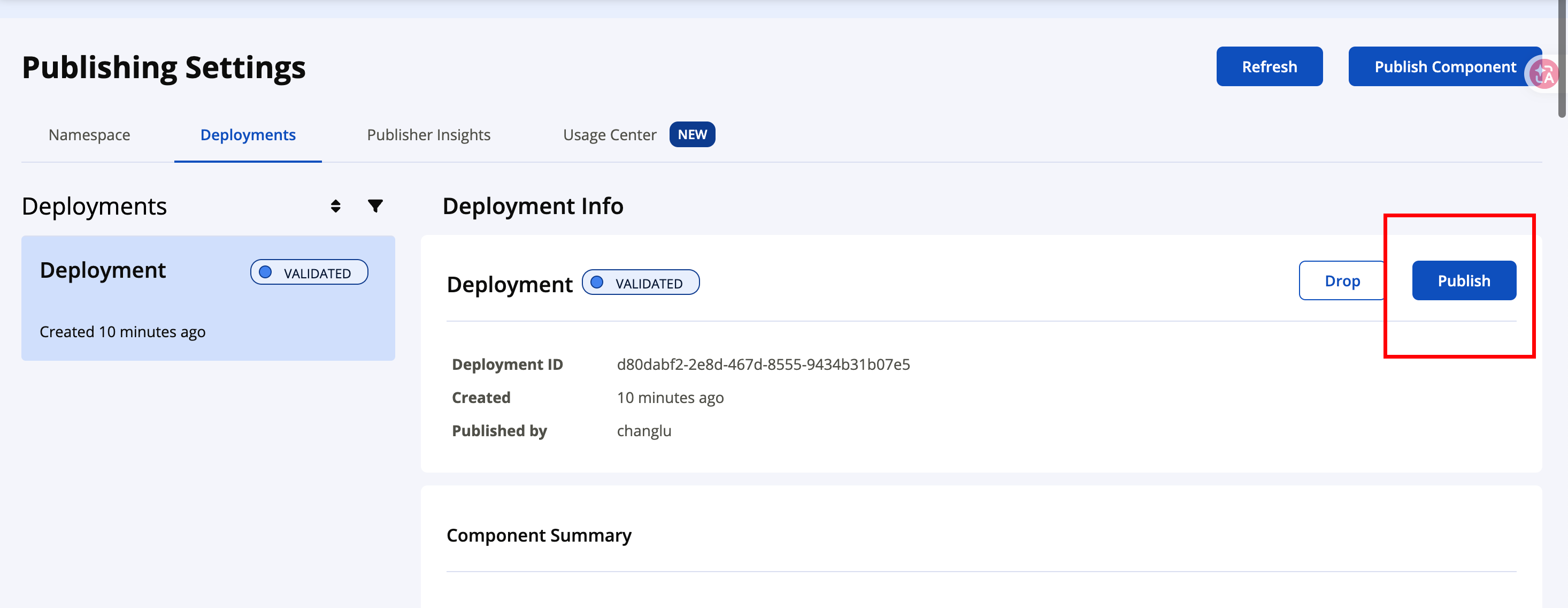
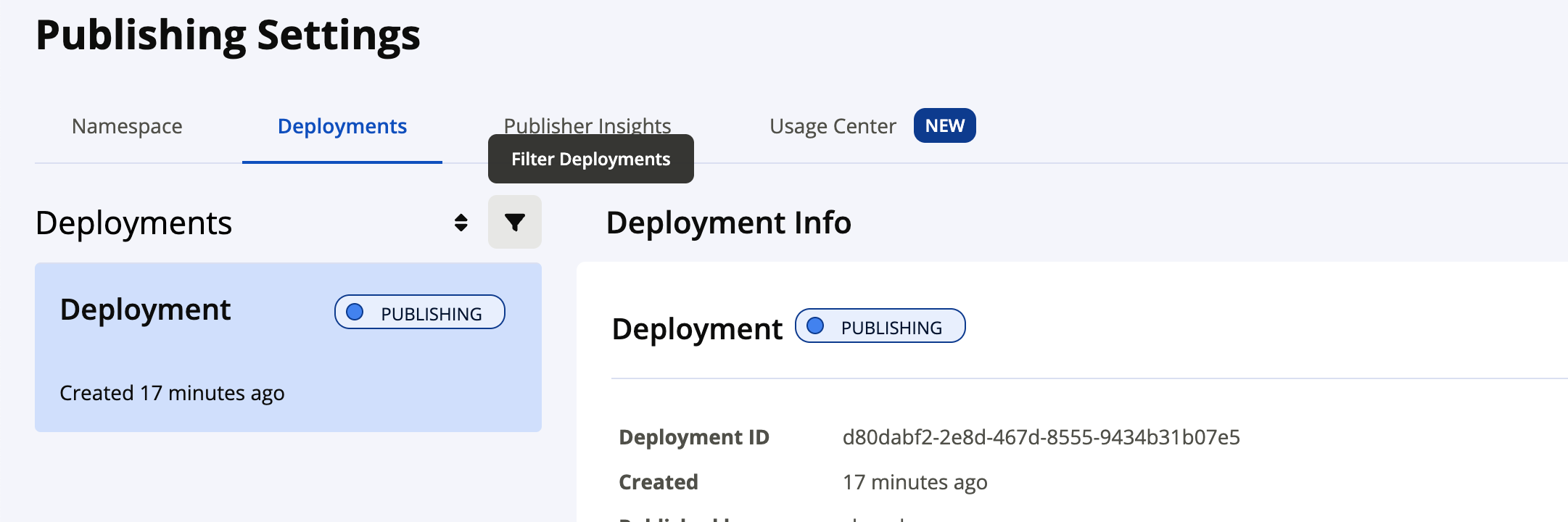
At this point it enters the publishing process:
-
Wait for the status to become PUBLISHED.
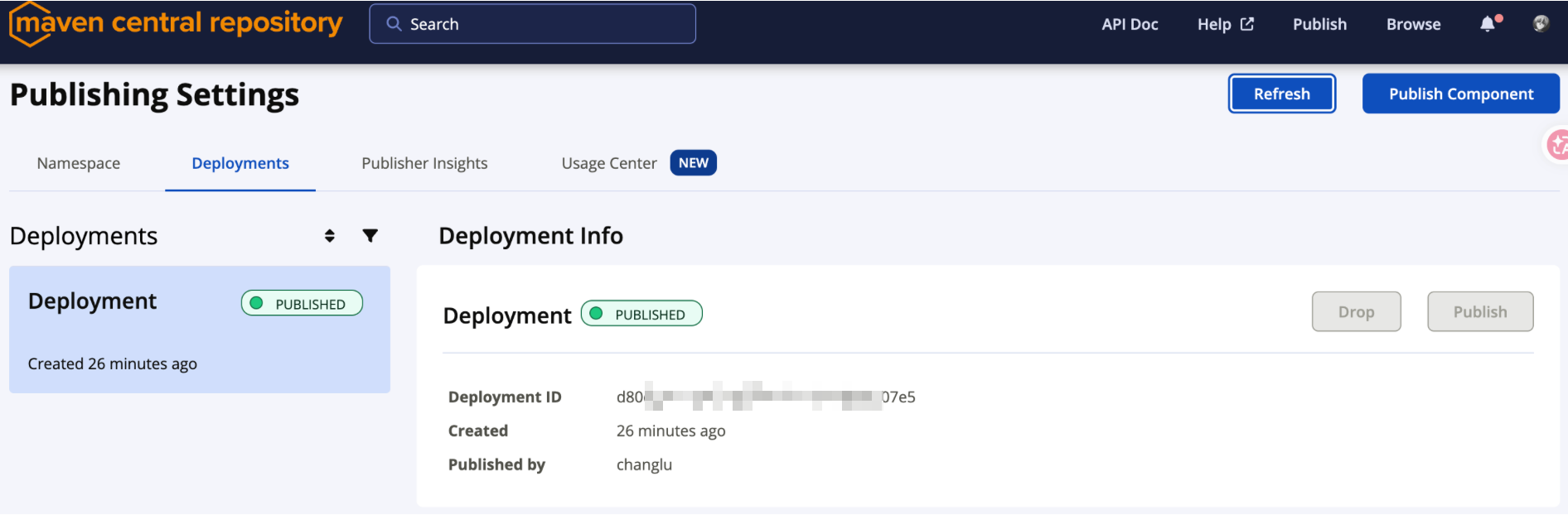
Publish is an irreversible operation. A published GAV version on Central cannot be overwritten, so it is not recommended to use automatic Publish directly for the first time.
Waiting time after Publish:
- After clicking Publish,
VALIDATEDusually moves toPUBLISHINGimmediately; PUBLISHING → PUBLISHEDgenerally takes a few minutes, commonly about1~10minutes;- After
PUBLISHED, syncing torepo1.maven.orgusually takes another few minutes; - The Central Search index usually updates within a few minutes after publishing, but may be later than the public repository.
It is recommended to refresh the Deployments page every 1~2 minutes; do not upload repeatedly. After the status becomes PUBLISHED, you can check the public repository directly:
curl -sS -L -o /dev/null -w '%{http_code}\n' \
  'https://repo1.maven.org/maven2/cloud/changlu/agentforge/agentforge-agent-core/1.0.0/agentforge-agent-core-1.0.0.pom'
A return of 200 means it is publicly available; a return of 404 means to keep waiting for synchronization. If it remains at PUBLISHING for more than 30 minutes, first check https://status.maven.org/; if it is still not complete after more than 1 hour, record the deployment ID and contact central-support@sonatype.com.
6.7 Step 6 (Optional for Later Versions): One-Click Automatic Publish
VERSION="1.0.1"
bin/local/release.sh "$VERSION" \
  --settings "$SETTINGS_FILE" \
  --auto-publish
--auto-publish dynamically overrides the POM's autoPublish=false and uses waitUntil=published to wait for Central to finish publishing. It should only be used after the first manual release has been verified successfully.
6.8 Step 7: Post-Release Verification
-
The Portal Deployments status is PUBLISHED;
-
Search for the full groupId
cloud.changlu.agentforgeor the artifactIdagentforge-agent-coreat https://central.sonatype.com/; -
Directly check
repo1.maven.org/maven2/<groupId 路径>/<artifactId>/<version>/; -
Actually reference it in a blank Maven project:
<dependency><groupId>cloud.changlu.agentforge</groupId><artifactId>agentforge-agent-core</artifactId><version>1.0.0</version></dependency>
You can first use the HTTP status for a cache-free core verification:
curl -sS -L -o /dev/null -w '%{http_code}\n' \
  'https://repo1.maven.org/maven2/cloud/changlu/agentforge/agentforge-agent-core/1.0.0/agentforge-agent-core-1.0.0.pom'
200: the artifact has entered the Maven Central public repository;404and the Portal isVALIDATED: only the upload is complete; you still need to click Publish on the Deployments page;- The Portal is
PUBLISHING: keep waiting; do not upload repeatedly; - The Portal is
PUBLISHEDbut it is still404: the public repository is syncing; retry later; repo1.maven.orgalready returns200but Central Search cannot find it: this is just a search index delay.
After the Portal shows PUBLISHED, syncing to Central Search and mirror repositories may still take tens of minutes; the Portal status and
repo1.maven.orgare authoritative. The script does not contain any credentials: the Central Token is read only fromsettings.xml, and the GPG Passphrase exists only in the current release process.
7. FAQ and Notes
| Issue | Description / Handling |
|---|---|
| Namespace verification fails | Confirm that the TXT record is added on the root domain changlu.cloud, that the value is exactly identical, and verify with dig -t txt changlu.cloud |
Invalid signature / GPG error | Confirm the KEY_ID is correct, the public key has been uploaded, and MAVEN_GPG_PASSPHRASE is correct; gpg version ≥ 2.2 |
损坏的密码 / Bad passphrase | The input must be the Passphrase set when creating the current GPG private key, not the Central Token, KEY_ID, fingerprint, or macOS password; once forgotten it cannot be recovered, and you must switch to a new key |
| bundle missing sources/javadoc | Check whether -P release took effect and whether javadoc was interrupted by source errors (doclint=none has been added) |
| POM missing metadata | Confirm the parent has licenses/developers/scm and each module has name/description/url |
| Version already exists | Central cannot overwrite / delete a published version; you must switch to a new version number |
-SNAPSHOT rejected | An official release must be non-SNAPSHOT; snapshots go through a separate channel and must not be mixed |
| Not findable after upload | Synchronization has a delay; first check the Published status in Portal Deployments |
| Example modules got packaged | Confirm excludeArtifacts took effect, or first use --dry-run to check the bundle contents |
8. Summary
The complete path to publishing to Maven Central can be summarized as:
- Choose a namespace: without a domain use
io.github.<username>; with a domain use the reverse domain (this scheme choosescloud.changlu); - Pass verification: for the domain approach add a DNS TXT; for the GitHub approach create a public repository;
- Prepare keys and passphrase: GPG key pair + Portal User Token +
settings.xml; - Modify the build: add metadata and a
releaseprofile (sources / javadoc / gpg / central) in the parent; - Run the release:
--dry-rundry run → formaldeploy→ Portal Publish → verify the dependency; - Stay sustainable: use
release.shto solidify the process, increment the version number, and never overwrite.
At this point, AgentForge's library modules can be imported directly by Java developers all over the world through a single dependency coordinate.
References
[1]. Sonatype Central Portal Official Documentation
[2]. Choosing your Coordinates (groupId namespace)
[3]. Requirements (sources/javadoc, GPG, POM metadata)
[4]. Publishing By Using the Maven Plugin
[5]. Generating a Portal Token for Publishing
[6]. How do I set the TXT record needed to prove ownership of my Web Domain?
[7]. GPG Requirements
[8]. central-publishing-maven-plugin (Maven Central Artifact)
Compiled by: Changlu Created: 2026.10.4 Updated: 2026.10.5